 Beauty Blend
Before and after in seconds
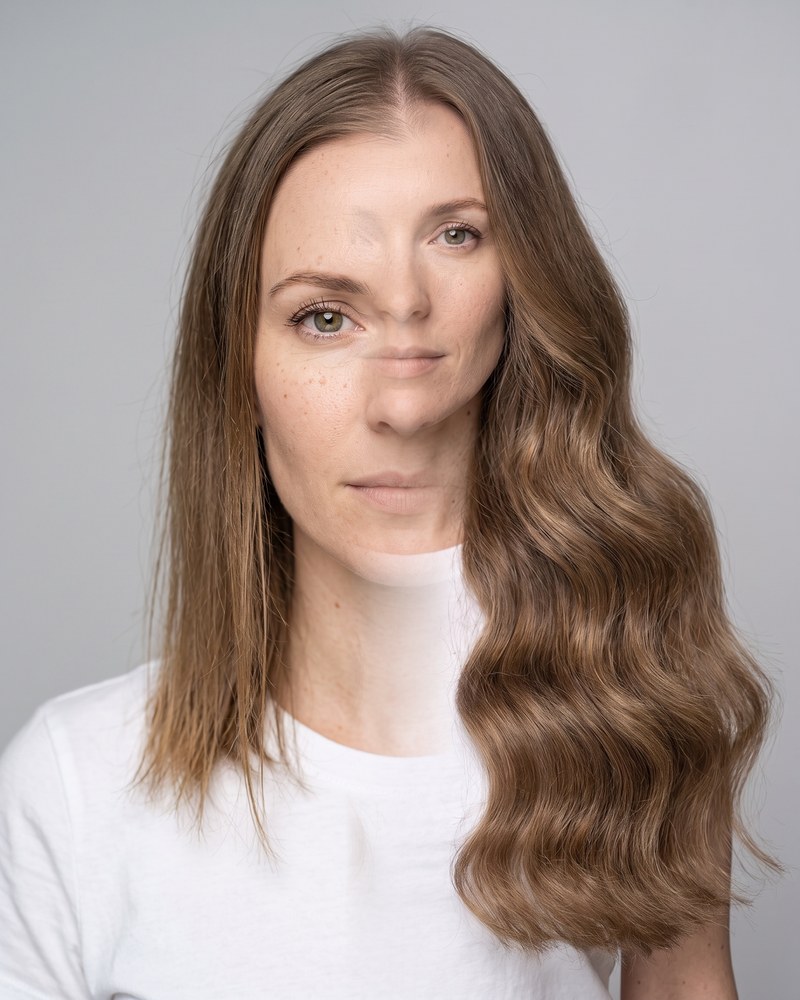
Pick two photos and the comparison is already built, sized 4:5 for the feed. No layers, no canvas to set up, nothing to line up by hand.
Beauty Blend turns two photos into a polished before and after image your clients will want to share.
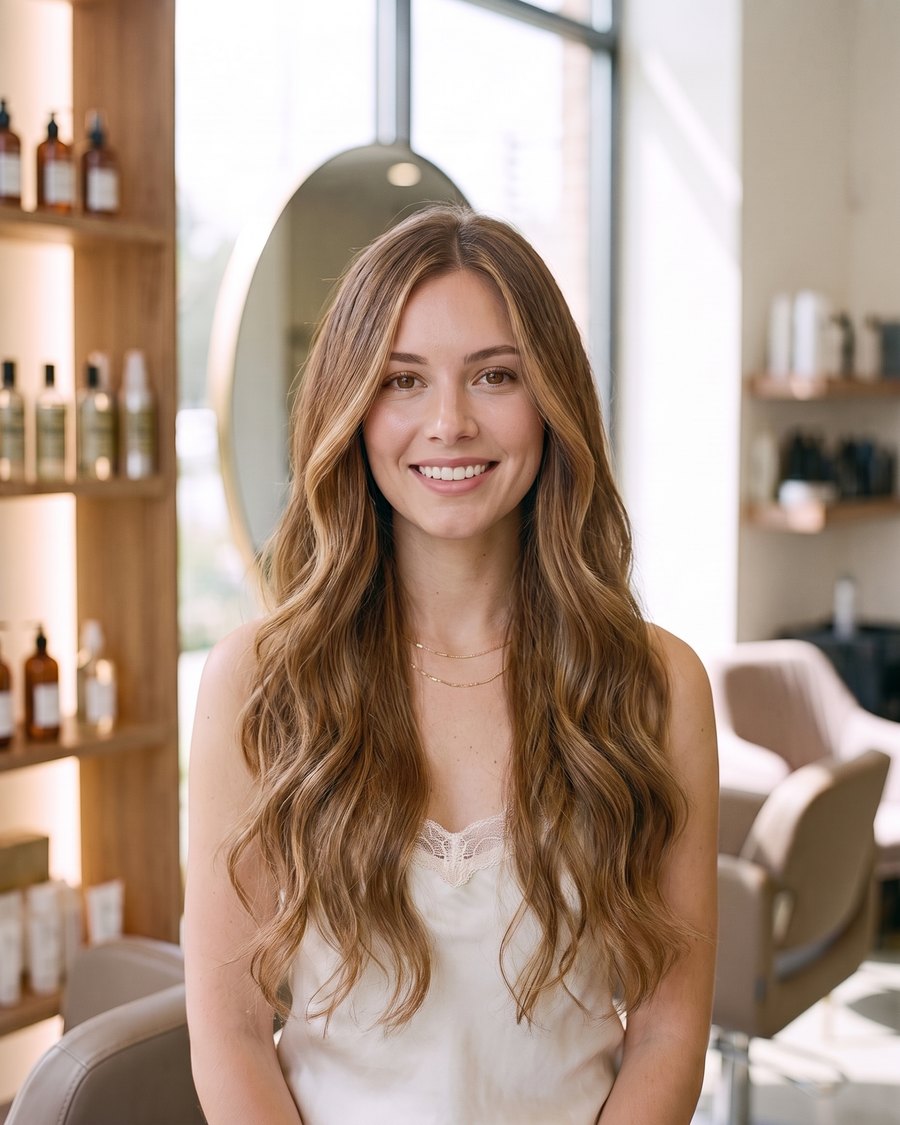
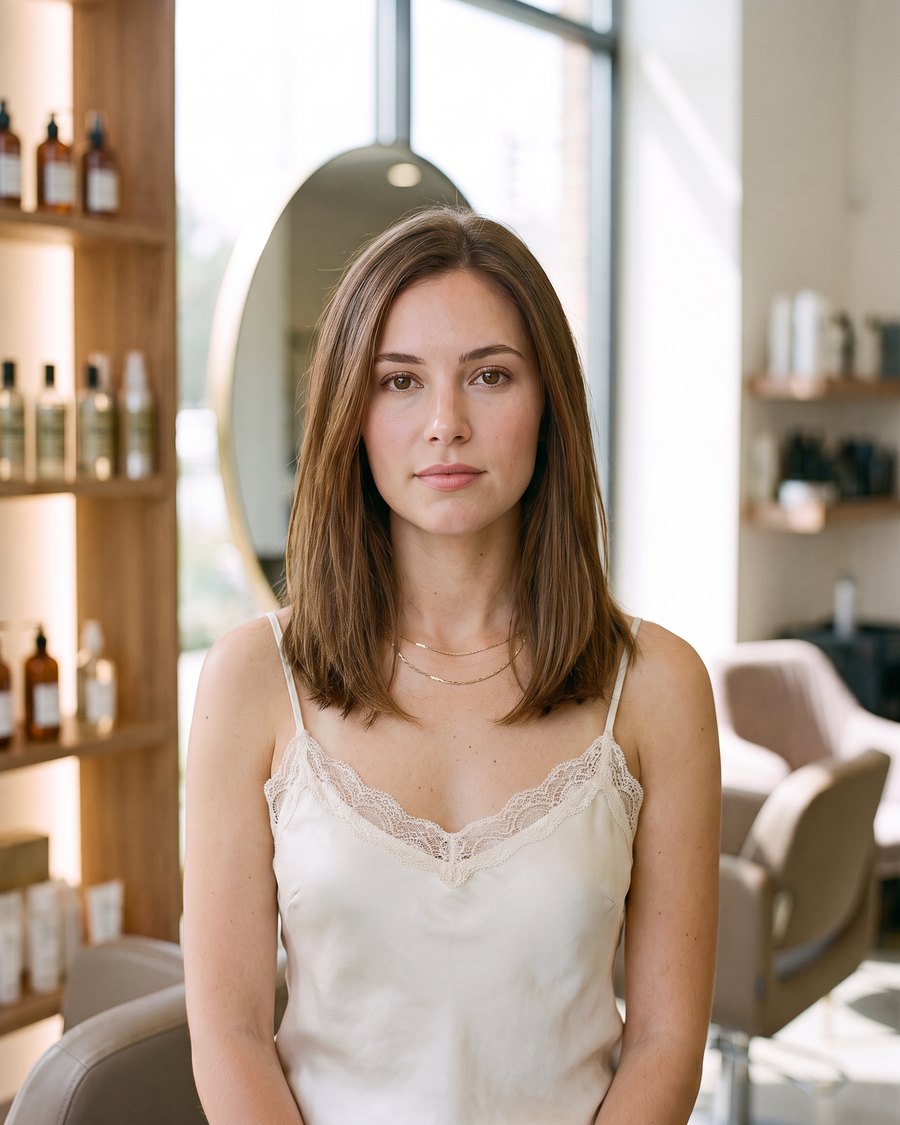 Before
After
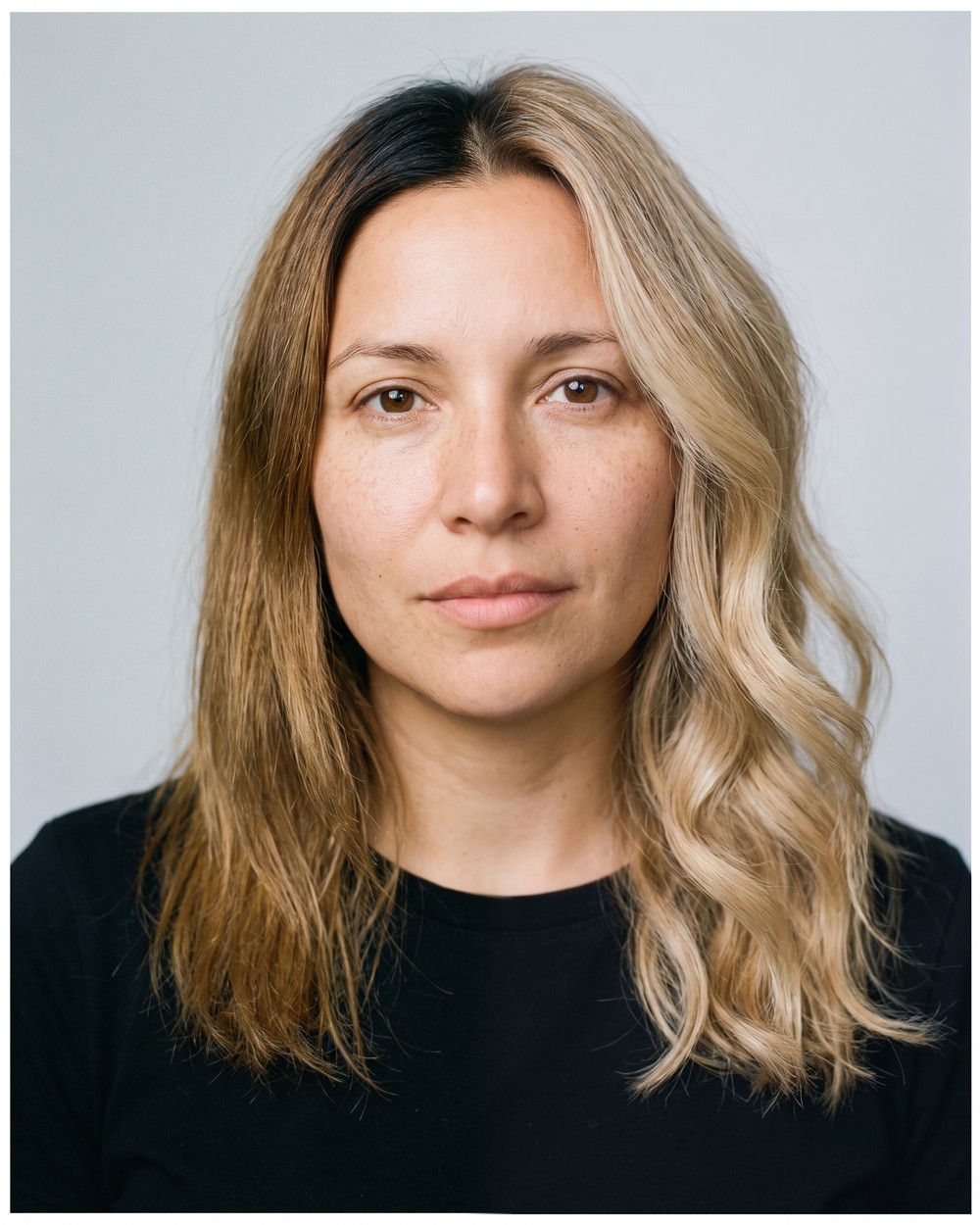
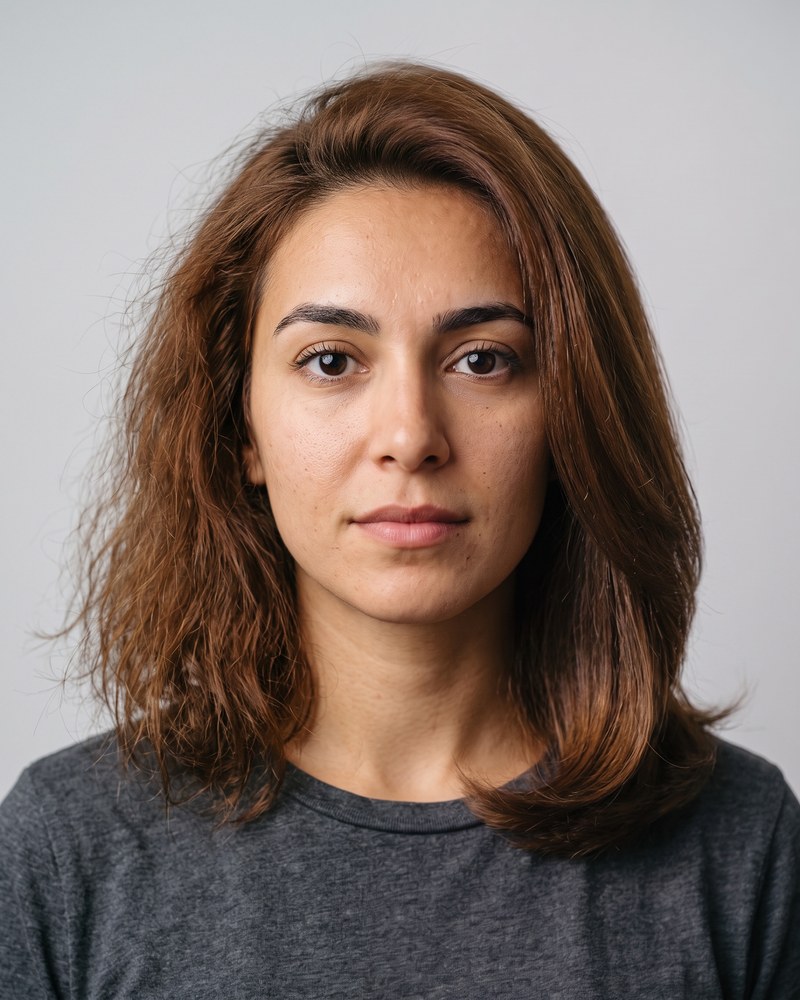
Before
After
No timeline, no layers, no learning curve. Pick two photos, set the split, and export.
Pick two photos and the comparison is already built, sized 4:5 for the feed. No layers, no canvas to set up, nothing to line up by hand.
Split the frame down the middle or across it, whichever suits the transformation better.
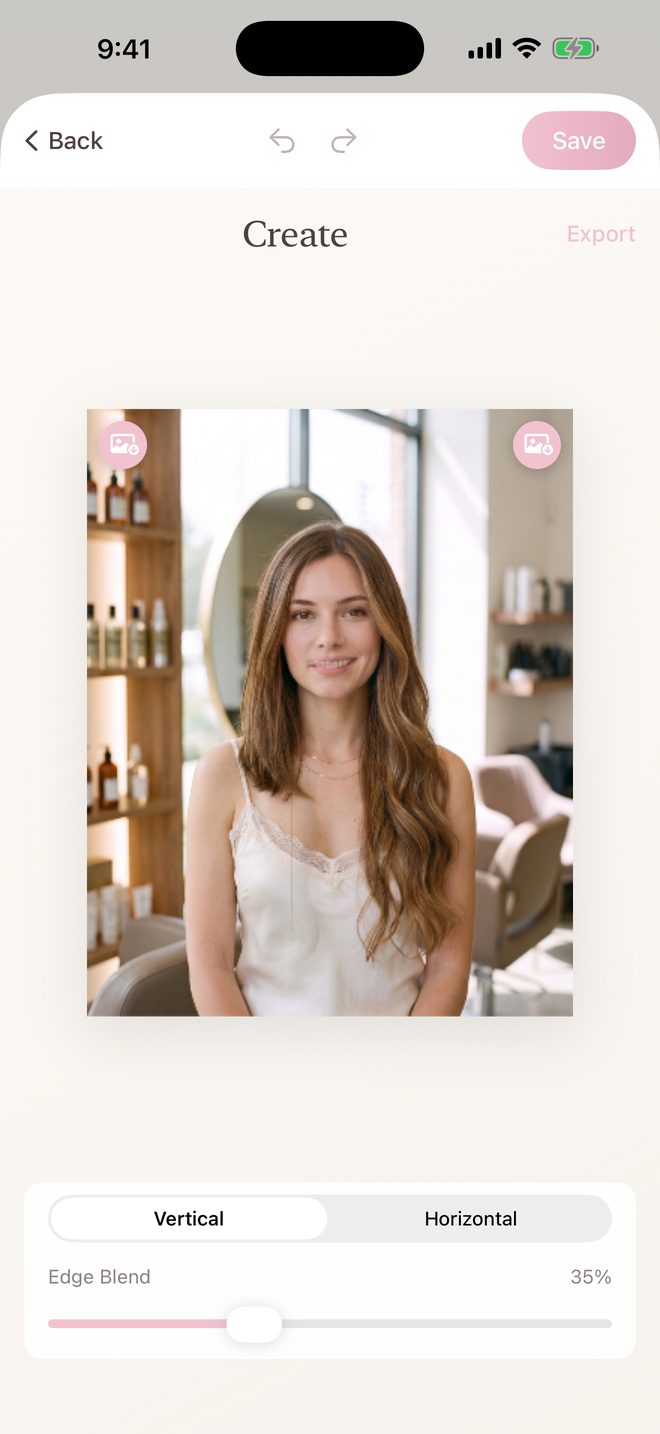
Slide the edge where the two photos meet from a crisp line to a soft, gradual blend, and turn on the blur if you want the join softer still. It is the difference between a comparison that looks composed and one that looks cut and pasted.
Pan and pinch either side on its own until the framing matches, so the eyes and shoulders sit at the same height across the join. Your adjustments save with the project.
Guide lines mark where the eyes, chest and waist should sit, and the camera tracks the face to tell you when you are lined up. Matched angles are the difference between a comparison people trust and one that just looks like two photos.
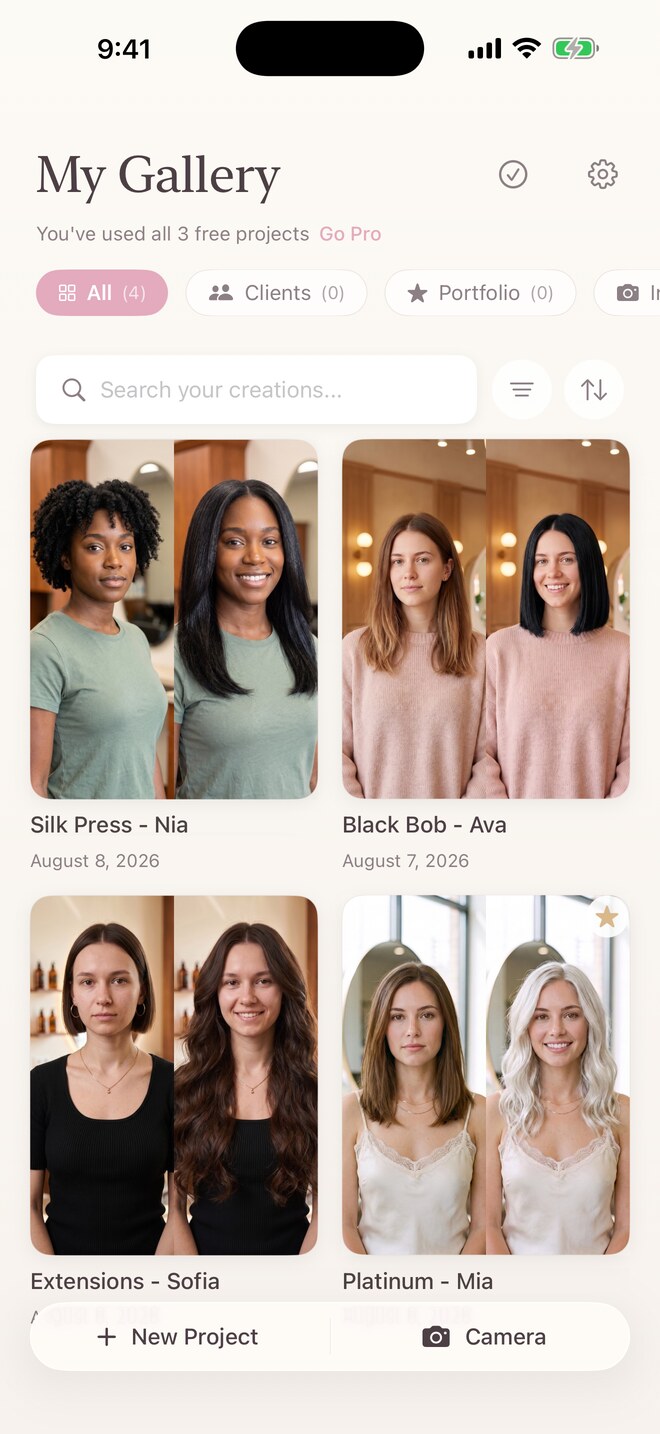
Every comparison stays saved and searchable, filed into Clients, Portfolio and Instagram collections or ones you name yourself. When a consultation needs an example of exactly this colour on exactly this hair, it is one search away.
Exports are sized for the Instagram feed with no cropping surprises: 1080 by 1350 free, or 2160 by 2700 on Pro.
Free exports carry a small Beauty Blend mark. Pro removes it, so what you post is only your work.
Every one of these is a single export, straight out of the app. No collage app, no editing suite.
The whole flow happens on your phone between the chair and the front desk. Nothing to upload, nothing to wait for.
Take it in the app, or pull one you already have from your camera roll. A phone photo in your normal salon light is exactly what this is built for.
Guided camera puts your before shot on screen as you frame the second photo and watches for the face, so the two line up. Matching the angle is what makes the pair convincing.
Pick a vertical or horizontal split, slide the blend from a crisp line to a soft edge, and save straight to your camera roll or share sheet.
Every project stays in your gallery, so you can come back and re-export a different crop or blend later without shooting again.
A gallery of everything you have made, and an editor with the handful of controls that actually matter.
If your work looks best next to what came before it, Beauty Blend was built with you in mind.
A clean split image reads instantly in a feed. Export at the right size and post it without editing it twice.
Keep a tidy record of your work in collections, so a consultation is one search away from the right example.
Send a client the image of their own transformation. It is the easiest referral you will ever ask for.
No trial countdown, no credits, no monthly plan to keep track of.
$0 to download
The core app, with no account required.
$9.99 per year
Or $1.99 per month. Everything in Free, plus the extras below.
Billed yearly through your Apple ID. Cancel any time in your Apple ID settings.
Yes. Beauty Blend does its work on your iPhone, so you can build and export comparisons with no signal at all. An internet connection is only needed to start or manage a Pro subscription, which Apple handles.
Completely. Your photos and projects stay on your device. There is no account, no login and no upload of your images to us or anyone else.
Free exports are saved at 1080 by 1350 pixels, the portrait size the Instagram feed is built around. Pro exports the same frame at 2160 by 2700. The file works anywhere else you want to post it.
Open the Settings app on your iPhone, tap your name, then Subscriptions, and choose Beauty Blend. Cancelling stops the next renewal, and Pro stays active until the end of the period you have already paid for.
Because everything lives on your device, deleting Beauty Blend removes your projects with it. Export anything you want to keep to your camera roll before you delete the app, and it will be safe in your photos and any backup those sync to.
No. Creating, editing and exporting comparisons are all free, and there is no trial to run out. Pro lifts the three-project limit, doubles the export size and removes the small Beauty Blend mark from your exports.
You can, and plenty of people do. The difference is what you spend your time on. A collage app makes you crop both photos, drag them into place, nudge them until they line up and hope the export size is right. Beauty Blend is built for this one job: it sizes the frame for the feed, gives you a blend edge instead of a hard seam, and keeps every project so you can re-export later. Collage apps also tend to add their own branding, which is the thing you are trying to avoid.
The closer the better, and it is worth the thirty seconds. Same spot, same distance, same light, client facing the same way. Guided camera mode exists for this: it holds your before shot on screen and watches the face while you frame the second photo. A pair shot from two different angles reads as two photos rather than one transformation.
Yes. Any two photos from your camera roll work, including ones from months ago. You only need the guided camera when you are shooting the after fresh and want it to line up with the before.
Yes, on both iPhone and iPad, and one purchase covers your devices through the same Apple ID. The gallery lays out wider on an iPad screen rather than stretching the phone layout.
No, and that is deliberate. Beauty Blend composes the two photos and nothing else. No filters, no smoothing, no colour shifting, so what you post is the work you actually did.
Your photos never leave your phone. There is no account to create, no cloud library and no upload, so client images are not sitting on anyone else’s servers. Getting permission before you post someone’s photo is still your call, as always.